
BTS Spark
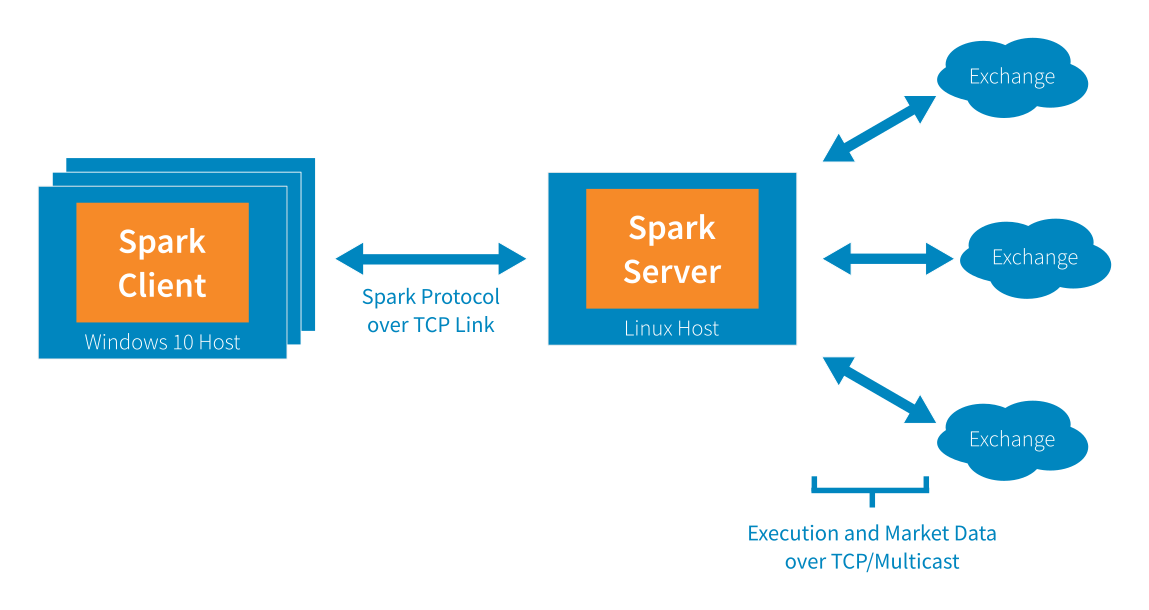
Our offering consists of a client UI Spark Client, a high performance professional futures front end, connected via our proprietary protocol over TCP to our Spark Server, which in turn connects to execution venues via their native protocols (typically FIX/TCP for execution and some proprietary protocol over UDP multicast for market data).
BTS Spark Client SDK
We currently offer two API extension points. This repository, our BTS Spark Client SDK allows users to control our Spark Server externally, that is, out of process, using the exact same protocol our own Spark Client does. In other words, a client application developed via the Spark Client SDK, say a VB .NET UI, would be able to provide any functionality our own UI provides.
We currently offer bindings for the Spark protocol to C++, C# and Excel clients. Since the underlying transport is TCP, clients developed via the Spark Client SDK can be located anywhere in the world, as long as they can reach the Spark Server via TCP. We do require a VPN or a secure network, since the Spark Protocol is currently not yet encrypted.
Our second API extension point is intended for users that require adding functionality to our Spark Server. If you are interested in extending the server process through custom order types, market data sources, or execution gateways, please see the Spark Server SDK.
In Depth
Getting Started
Git
- First clone the spark_client_sdk repo
> git clone https://github.com/BlueTradingSystems/spark_client_sdk.git
Build
- Use msbuild to target windows / .net 4.71
- Install studio here if you don't have it: https://visualstudio.microsoft.com/downloads/
- Use VSCode for editing, it's better: https://code.visualstudio.com/
> cd spark_client_sdk\src\spark_sdk
spark_client_sdk\src\spark_sdk> msbuild /t:restore
spark_client_sdk\src\spark_sdk> msbuild
- spark_sdk binaries will be produced in the bin\Debug directory
Connecting to Spark Server
- Start your exe using the -ConfigServer parameter to point at a running Spark Server
> spark_sdk.exe -ConfigServer http://location:8000/config
Or create a file called spark.conf at %APPDATA%\bts\conf\ that contains:
include: "http://location:8000/config/"
Examples
- Make sure you can connect to a running server
- run spark_sdk.exe with no parameters to see help
spark_sdk\bin\Debug\net471> spark_sdk.exe -ConfigServer http://location:8000/config

BTS Spark SDK
Usages: spark_sdk [command] [arguments]

Commands:
   md <exchange> <security_type> <symbol> [<security_desc>]
   order <account> <exchange> <security_type> <symbol> <security_desc> <signed_quantity> [<price>]
Arguments:
   --user=<bts user name>
   --pass=<password>
   --pump=<pump_interval_in_ms=100 default>
-
To print simulated market data to the screen:
spark_sdk.exe md SIM FUTURE ES SIM:ESU9 --user=bts --pass= -ConfigServer http://location:8000/config -
To send a 1 lot sell order for ES in account ACC A:
spark_sdk.exe order "ACC A" SIM FUTURE ES SIM:ESU9 -1 4000.5 --user=bts --pass= -ConfigServer http://location:8000/configYou should see an order status stream print to the screen after running this command
-
Check out sample code
 ### Excel
 * Most BTS Client API calls can be made through Excel 2016, load the example spreadsheet to see how
spark_sdk\bin\Debug\net471> start spark_excel-addin64-packed.xll
* This will start excel and load the bts addin
* From excel, open  ```spark_sdk\bin\Debug\net471\spark_excel_example_2019.xlsm``` to get started
* Check the [```excel```](excel/) directory for other example spreadsheets


* Send us an email for help: api_support@bluetradesys.com