 John Colvin
5163ca4cae
This new structure provides several benefits:

* Allows us to install multiple CMake projects in the same destination
  dir (without include path conflicts).
  - This makes shipping the trading algo sdk a trivial excercise. Simply
    copy the lib and include dirs from the install dest. That's it!
* Puts us in a position to break up the monolithic libspark into smaller
  modules, which are easier to manage.

Windows specific notes:

* Get rid of unnecessary script vs_filters.cmake
* Define WebsocketConnectionGateway directly in cs (instead of proto)
  - The proto would no longer be in the include path passed to protoc.
    Moving it to c# because there wasn't a compelling reason for it to
    be a proto in the first place.
* Set spark output prefix to "lib" on windows
  - So we get "libspark.dll" instead of "spark.dll", which conflicts
    with the csharp lib, "Spark.dll".
* Copy libspark.dll to net8.0 & net8.0-windows in a single cmake build
  target

fix build: Copy libspark to both dirs net8.0, net8.0-windows
BTS Spark
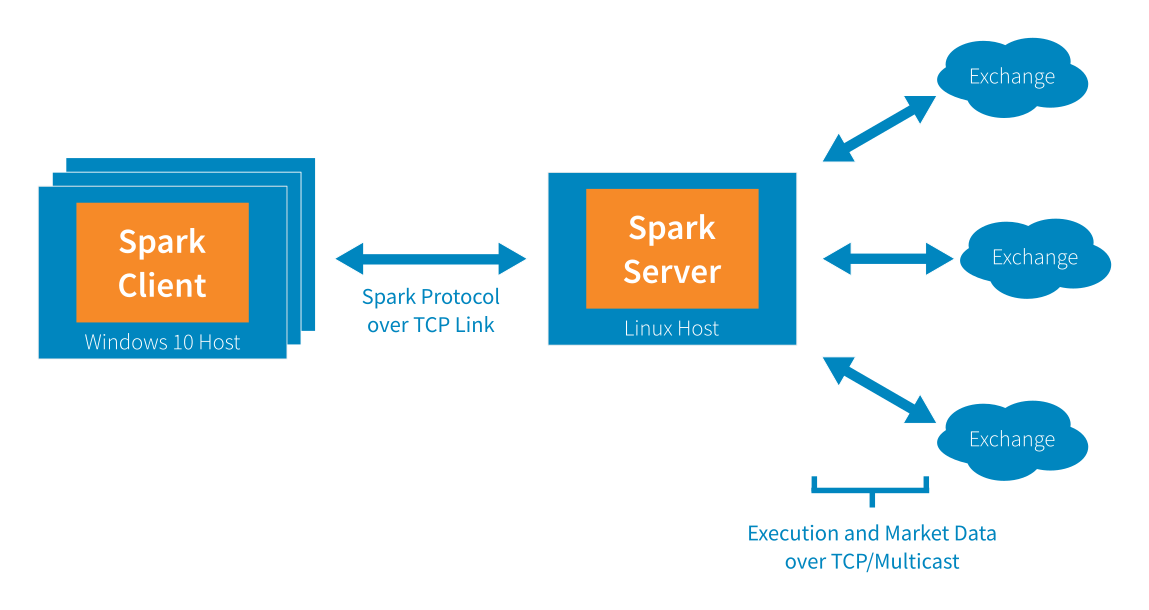
Our offering consists of a client UI (Spark Client), a high performance professional futures front end, connected via our proprietary protocol over TCP to our Spark Server, which in turn connects to execution venues via their native protocols (typically FIX/TCP for execution and some proprietary protocol over UDP multicast for market data).
BTS Spark Server SDK
This API extension point is intended for users that require adding functionality to our Spark Server. Using the Spark Server SDK users can create new order types, new market data sources and soon new execution gateways. In this case users implement the new functionality in C++, producing a shared library that is loaded at run time by our Spark Server.
If you are interested in sending orders to or otherwise controlling a spark server remotely please see the BTS Spark Client SDK repo.
Getting Started
Docker
We use docker to provide a full dev environment with all the tools users need to develop their own algos.
- Setup docker on your preferred OS and pull down the BTS docker
- If you are new to docker you can find out more about it here: https://docs.docker.com/get-started/
$ docker pull bluetradingsystems/linux_docker
- Our docker can also be found here: https://hub.docker.com/r/bluetradingsystems/linux_docker/
- Start the docker container
$ docker run \
   --rm \
   --net host \
   -i \
   -h $(hostname)_spark \
   -v /etc/passwd:/etc/passwd \
   -e "TZ=America/New_York" \
   --security-opt seccomp=unconfined \
   -v /var/log/syslog:/var/log/syslog \
   -v /etc/group:/etc/group \
   -v /tmp:/tmp \
   --shm-size=2048m \
   -u $UID \
   -v /home:/home \
   -w /home/$USER \
   --name bts_sdk \
   -t bluetradingsystems/linux_docker \
   /bin/bash
Git
Now that you're inside the docker container, install git large-file-support and then clone the repo into ~/spark_sdk/
$ cd
~$ git lfs install
~$ git clone https://github.com/BlueTradingSystems/spark_sdk.git
Start the server
~$ cd ~/spark_sdk/lib
~/spark_sdk/lib$ ./sparkd run
Connect to the Spark Admin tool via the browser
Browse to http://<your_ip>:8000
- You should see a Spark Admin login screen, enter user bts with no password
- Add or manage user trading and market data permissions by clicking the Users icon on the left side
- Add or manage accounts and risk limits by clicking on the Accounts icon on the left side
Connect Spark Front End (Windows)
- Download spark windows executable here: <spark_client>
- Then start the client and point it at your running server:
> spark.exe -ConfigServer http://<your_ip>:8000/config
Algo Development
Algo Orders typically implement the IAlgoOrder interface to respond to events and use the IAlgoServices interface to create and control child orders as well as manage their own life cycles. See examples/order_plugin_example.cpp for a fully fledged example
First kill your running sparkd by hitting ctrl-c
bts@spark-vm_spark:~/spark_sdk/lib$ ./sparkd run
^C
bts@spark-vm_spark:~/spark_sdk/lib$
Run build_examples.sh to make sure you can build the examples, this will produce an order_plugin_example.so
~$ cd ~/spark_sdk/examples
~/spark_sdk/examples$ ./build_examples.sh
The server process looks in the plugins directory to load these shared objects. First navigate to the plugins directory to verify the shared object (order_plugin_example.so) has been built
$ cd ~/spark_sdk/lib/plugins
~/spark_sdk/lib/plugins$ ls
   order_plugin_example.so

~/spark_sdk/lib/plugins$
Now move back to the lib directory and bounce the server
~$ cd ~/spark_sdk/lib
~/spark_sdk/lib$ ./sparkd run
Dev Notes
SDK Package Layout
- The sdk puts logs in
~/sparkdata/data/logging/log - The sdk package has binaries in
~/spark_sdk/lib - Plugins go in
~/spark_sdk/lib/plugins/
Production layout
- Spark servers reside on a port, usually 8000, but your production instance could be on a different PORT
- Production Logs are in
~/PORT/sparkdata/data/logging/logon the host - Production binaries are in
/sparkbininside the docker container - Production algo plugins should go into the
/sparkbin/pluginsdirectory
Debugging
Use this command to start the sparkd server process inside gdb
$ cd ~/spark_sdk/lib
~/spark_sdk/lib$ gdb --args ./sparkd run
In gdb:
(gdb) break order_plugin_example.cpp:366
Spark windows client
- Download spark windows executable here: <spark_client>